babal deal
Get unlimited web hosting for just रू 1999/year. Order Now

How to Setup, Install and Deploy your Node Js Application with Babal Host?
December 20, 2021
9:04 pm
You can get Node js package in Babal Host, in the following packages.
- Node js Starter Package
- Node js Pro Package
- Professional Plan
- Login to your cPanel. If you do not know how to log in to your cPanel, follow this article.
- Scroll down, and in the Software section, select the "Setup Node js App".

- Click on Create Application.

- Fill in the form below, as filled in the photo, and click on the create button.
 - Node.js version: Select your preferred version from the drop-down list.
- Application Mode: Choose development or production from the list. For testing, you can initially use development, later on during launch you can change it to Production.
- Application root: It is the file system location for application files. The entry should be /home/username to form the complete path in the cPanel home directory.
- Application URL: It is the public URL to the application.
-Application Startup file: The initial file will first be loaded while launching the application.
- Node.js version: Select your preferred version from the drop-down list.
- Application Mode: Choose development or production from the list. For testing, you can initially use development, later on during launch you can change it to Production.
- Application root: It is the file system location for application files. The entry should be /home/username to form the complete path in the cPanel home directory.
- Application URL: It is the public URL to the application.
-Application Startup file: The initial file will first be loaded while launching the application. - The following screen will appear after clicking on create button.

- Open your site by using the URL: <domainname>.com/app
 It works. This is how the working application is installed. We need to enhance the environment with the package.json settings file and the npm package manager. Follow the article below for creating package.json file and installing npm.
- Go to File Manager in cPanel.

- Open the app folder inside the domain folder where you setup the node.js app.

- Click on the +File icon to create the new file.

- Name the filename as package.json and click on Create New File button.

- Right-click on the package.json file and click on the edit button.

- Add the following code in the file and click on Save Changes and then click on close button.
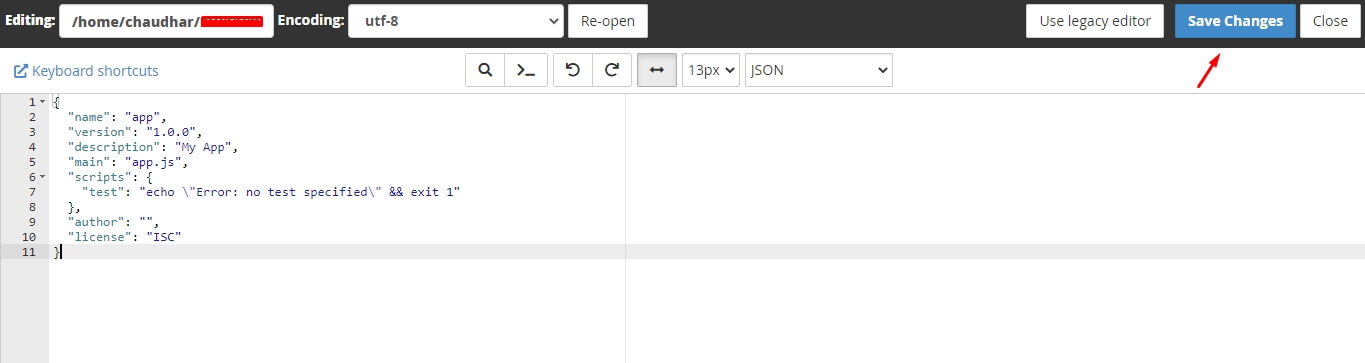 Code:
Code:
{
  "name": "app",
  "version": "1.0.0",
  "description": "My App",
  "main": "app.js",
  "scripts": {
    "test": "echo \"Error: no test specified\" && exit 1"
  },
  "author": "",
  "license": "ISC"
}
#npm install
Follow the below steps to install npm to the node.js app- Open your cPanel, scroll down and in Software section, Click on "Setup Node App" option.
- Click on the pencil icon, editing the application.

- Scroll down a bit, click on run NPM Install button. This might take some time to detect the file by this application. It might take 10-20 minutes to install.

- The npm install runs and displays the success indicator of completing the task.
#for installing packages with npm and performing the command-related tasks
See the following steps for setup the node js app and doing the command-related tasks.- Connect to your account to login through SSH.
- Create the node js application with the command below.
cloudlinux-selector create --json --interpreter nodejs --version 11 --app-root app --domain example.com --app-uri app
- During inside the home directory, change the directory into the application directory.
cd ~/app
- Open the vi editor and create the package.json file
vi package.json
- Enter i to change to the insert mode and paste the following code in the text editor.
{ "name": "app", "version": "1.0.0", "description": "My App", "main": "app.js", "scripts": { "test": "echo \"Error: no test specified\" && exit 1" }, "author": "", "license": "ISC" } - Enter escape followed by : to enter command mode.
- Enter x followed by Enter to save and exit the editor.
- Now, install npm using the following command.|
cloudlinux-selector install-modules --json --interpreter nodejs --user example --app-root app
- For installing packages with npm and performing other command-line tasks, log in with ssh and type the following command to enter the virtual environment of the application.
source /home/example/nodevenv/app/11/bin/activate && cd /home/example/app